
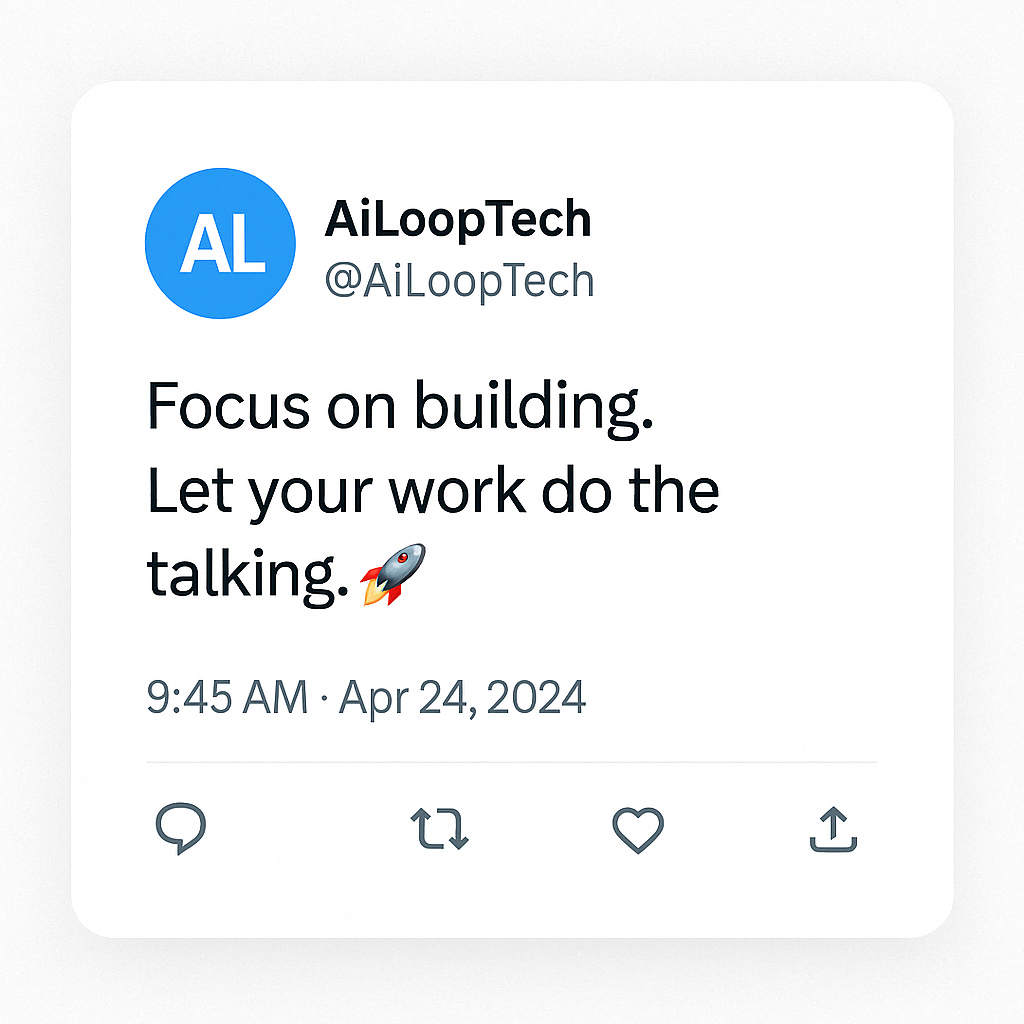
🪜 Step-by-Step Guide: Creating a Twitter Post Image Using ChatGPT
✅ Step 1: Open ChatGPT (Plus Plan)
🔸 Visit chat.openai.com
🔸 Make sure you're using ChatGPT-4 Turbo with image capabilities enabled
🔸 Only ChatGPT Plus users can generate images with DALL·E or the image generation tool
🖼️ Step 2: Decide What You Want in the Image
Ask yourself:
💭 "What should this image contain?"
Examples:
-
Quote + Minimal background
-
Motivational tweet in tweet-style format
-
Funny meme format with tweet style
-
Product promo post
📌 Tip: Be clear and descriptive. ChatGPT works best with specific and visual prompts.
✍️ Step 3: Write a Prompt Like This
Here’s a sample prompt you can use directly in ChatGPT:
📷 You can also add your own profile picture by uploading it first (optional).
🪄 Step 4: Let ChatGPT Generate the Image
ChatGPT will now generate the image using the built-in image tools 🛠️
Just wait for the image to appear and...
✅ Boom! Your tweet-style image is ready! 🎉
🔁 Step 5: Make Changes (Optional)
Didn’t get the exact look?
Ask ChatGPT to change:
-
Text 📝
-
Background color 🎨
-
Layout (horizontal/vertical) ↔️
-
Font style 🔡
-
Add/remove likes, retweets, etc.
Just tell it what to fix like:
💾 Step 6: Download & Use
🖱️ Right-click the image and select “Save As…”
✅ Use it in your blog, social media, or Twitter directly!
💡 Extra Tips
✨ Use emojis to add a human touch
🧠 Make sure your tweet text is short and impactful
📱 Always preview on mobile to check readability
🚀 Use these posts for personal branding, promotions, or announcements
🧩 Sample Blog Title Ideas
-
"No Photoshop? No Problem! Create Stunning Twitter Posts with ChatGPT"
-
"How I Designed a Viral Tweet Image with Just ChatGPT (No Canva)"
-
"Step-by-Step: Make Your Own Tweet Image in Seconds Using AI"